Getting started
From a fresh install to your first test order, step by step. It takes a few minutes; every step names the screen you need.
1. Install
You need WordPress 6.3 or newer, WooCommerce 4.0 or newer and PHP 7.4 or newer. Install and activate WooCommerce first, then Vinyl Lettering Designer (from the download page). Coming from the old Vinyl Sticker Tool? Read the upgrade steps first.
2. Run the setup wizard
Open Vinyl Lettering → Setup wizard. It has five short steps: business type, unit and materials, prices, demo product and test cut. You can skip it and open it again from the menu at any time.
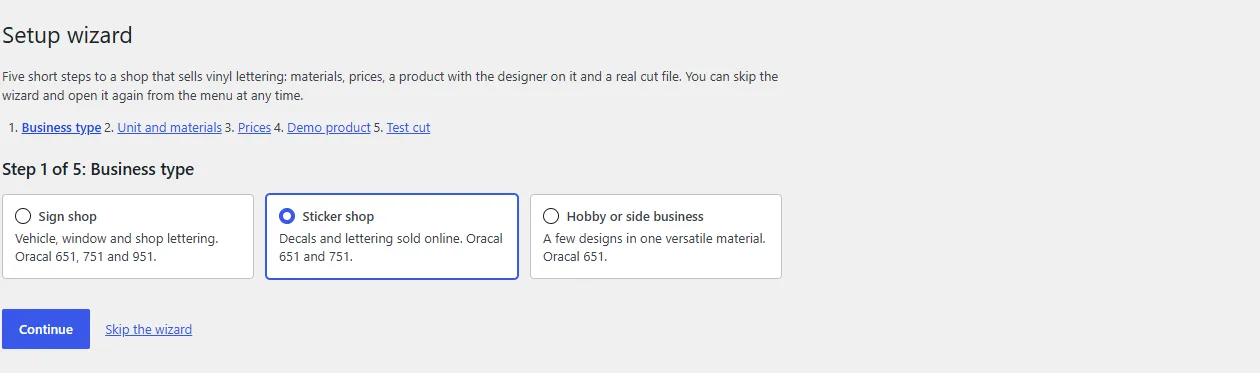
- Business type: sign shop (vehicle, window and shop lettering, with Oracal 651, 751 and 951), sticker shop (Oracal 651 and 751) or hobby or side business (Oracal 651).
- Unit and materials: choose the unit in the designer (centimetres, millimetres or inches). The material series that fit your business type are already ticked.
- Prices: one price per m² for each series you chose (the designer charges it per dm² of the cut size) and a minimum price per piece. Refine everything later with the pricing guide.
- Demo product: creates a published product called “Custom vinyl lettering” with the designer switched on. You can rename or delete it later.
- Test cut: creates a real 30 × 10 cm cut file with the text TEST 123 in your browser and tells you what it costs. No order is placed.
3. Switch on the designer for a product
Edit a WooCommerce product, open the Vinyl lettering tab in the Product data box and enable the designer. Save the product. To place the designer on any page instead, use the shortcode [vinyl_sticker_tool]. If your theme builds the product page in a different way, the shortcode is also the fallback.
4. Try it as a customer
Open the product page. Unless you switched it off, the customer sees suggestions first: what are you making? Example projects give a ready starting point, or they start from scratch. From 7.0.2 this is a compact row with a Hide button that closes as soon as they start designing.

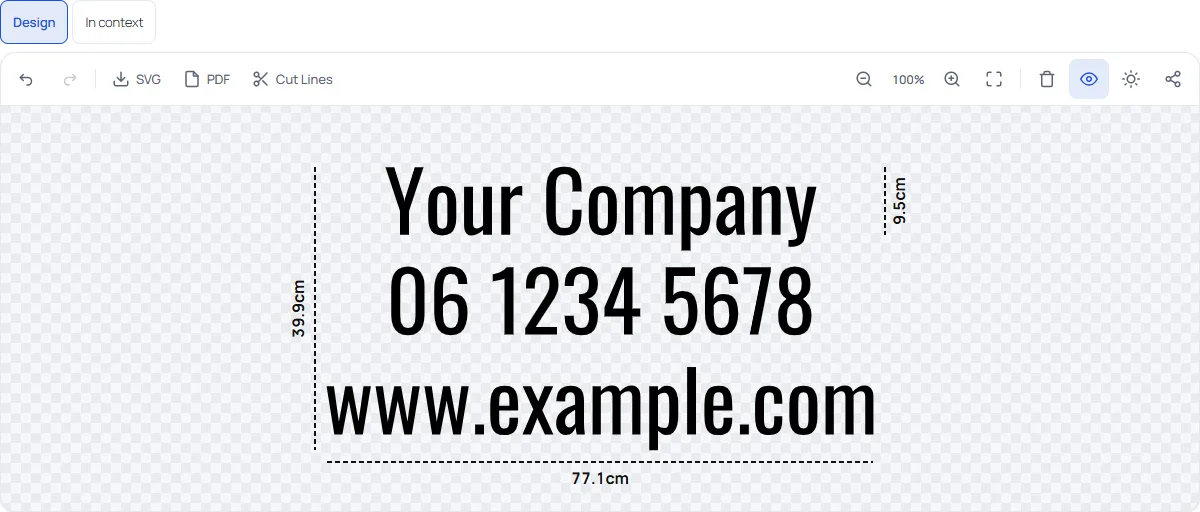
Then they type a text, pick a font, set the size and see the price follow. Try the size modes, a second text layer and a material change to see how the price panel reacts.
5. Place a test order and find the cut file
Add the design to the cart and check out (cash on delivery is enough for a test). Open the order in the WooCommerce admin: every order line with a design shows the text, size, material and the download buttons for the production files. Open the SVG in the cutting software you already use. More in the production files guide.
The plugin does not talk to a cutting machine. It gives you the file; your cutting software and plotter do the rest.
What to do next
- Settings reference: every switch, so you only offer what your shop produces.
- Materials and pricing: build the price rules with worked examples.
- Fonts and templates: what the customer can pick from.
- Multi-colour: foil colour per layer with registration marks.
- Running a workshop? See what Pro adds after the order: proof approval, a production board and job sheets.