Settings reference
Every tab and every switch of the free plugin, with what it does. Nothing is locked: each customer-facing feature has its own switch and there is no licence key.
Where the settings live
Everything is under Vinyl Lettering in the WordPress admin menu: Settings (four tabs), Setup wizard, Materials, Fonts, Templates, Designer style and Extensions. Product-level options are in the Vinyl lettering tab of the product data.
General tab
The shop name (shown on production files and in the designer; empty uses the site title), then the designer features. A ticked box means the customer sees the feature.
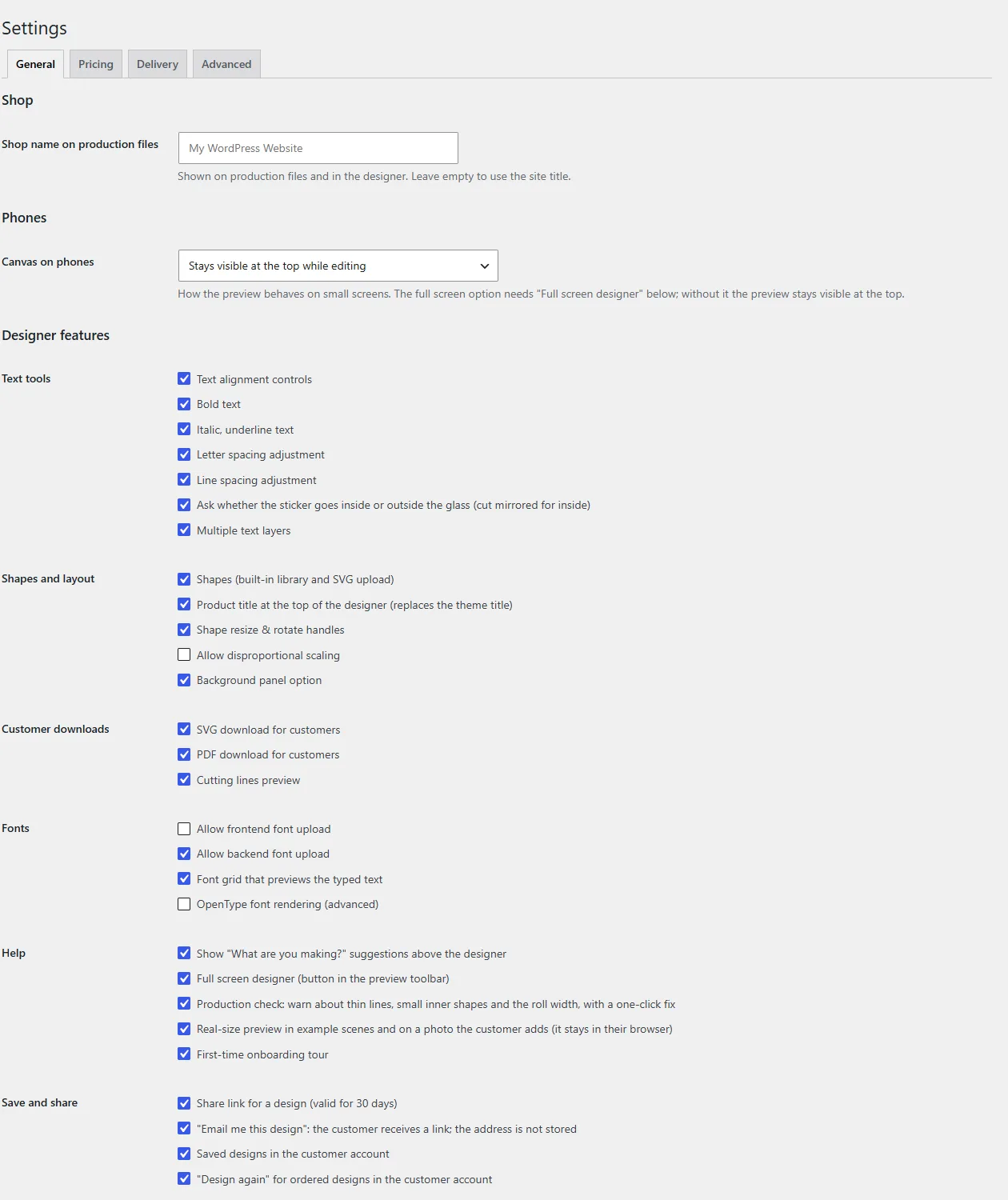
| Group | Switch | What it does |
|---|---|---|
| Text tools | Text alignment controls | Left, centre and right alignment buttons. |
| Bold text | A bold button. | |
| Italic, underline text | Italic and underline buttons. Off by default. | |
| Letter spacing adjustment | A stepper for letter spacing. Off by default. | |
| Line spacing adjustment | A stepper for line spacing. Off by default. | |
| Inside or outside the glass | Asks whether the sticker goes inside or outside the glass; for inside the cut file is mirrored. | |
| Multiple text layers | Lets the customer add extra text layers. | |
| Shapes and layout | Shapes | The built-in shape library and upload of your own SVG shapes. |
| Product title at the top | Shows the product title above the designer instead of the theme title. | |
| Shape resize and rotate handles | Handles on the canvas for shapes. | |
| Allow disproportional scaling | Lets the customer unlock the proportions lock. Off by default. | |
| Background panel option | For printed stickers: choose a background colour or image. Off means a white background panel with text. Off by default. | |
| Customer downloads | SVG download | An SVG button for the customer. |
| PDF download | A PDF button for the customer, at actual size with the cut line as the CutContour spot colour. | |
| Cutting lines preview | A Cut Lines view of the outlines the cutter follows. | |
| Fonts | Allow frontend font upload | Customers can upload their own font file. Off by default. |
| Allow backend font upload | Font upload on the admin Fonts screen. Off by default. | |
| Font grid | A font picker that previews the typed text. | |
| OpenType font rendering (advanced) | Advanced rendering of font files. | |
| Help | “What are you making?” suggestions | Show suggestions with example projects above the designer. On by default. A compact row with a Hide button; it closes as soon as the customer starts designing. Off: the designer opens without it. |
| Full screen designer | A full screen button in the preview toolbar. It is needed for the “Canvas on phones” full screen option. | |
| Production check | Warns about thin lines, small inner shapes and the roll width, with a one-click fix. | |
| Real-size scene preview | Example scenes and a photo the customer adds (it stays in their browser). | |
| First-time onboarding tour | A short guided tour. Off by default. | |
| Save and share | Share link | A link to a design, valid for 30 days. |
| “Email me this design” | The customer receives a link; the address is not stored. | |
| Saved designs | Saved designs in the customer account. | |
| “Design again” | Re-open an ordered design from the customer account. | |
| Review step | Install kit | Products the customer can add to the order (you choose them under Delivery). |
| Installation links | Links to your installation guide and video (set under Delivery). | |
| Transfer tape line | Shows “Transfer tape included, pre-spaced and ready to apply”. This is a claim about your own product: switch it on only if every order ships that way. Off by default. | |
| Review stars | Stars at the price, only when the product has reviews. | |
| Photos of installed work | Photos for the chosen start preset. | |
| Durability line | The indicative outdoor durability of the chosen material. | |
| Multi-colour designs | Foil colour per layer | A foil colour per text layer and shape. Off: every layer uses the main foil colour. |
| Registration marks | Marks on every colour layer, in the cut files and the customer SVG. |
Canvas on phones (from 7.0.2)
A setting above the feature switches, under the heading Phones: Canvas on phones decides how the preview behaves on small screens. The default is the first option.
- Stays visible at the top while editing (default)
- Scrolls with the page
- Opens in the full screen editor after the customer picks a project
The full screen option needs the “Full screen designer” switch; without it the preview stays visible at the top. Free 7.0.1 and older do not have this setting.
Pricing tab
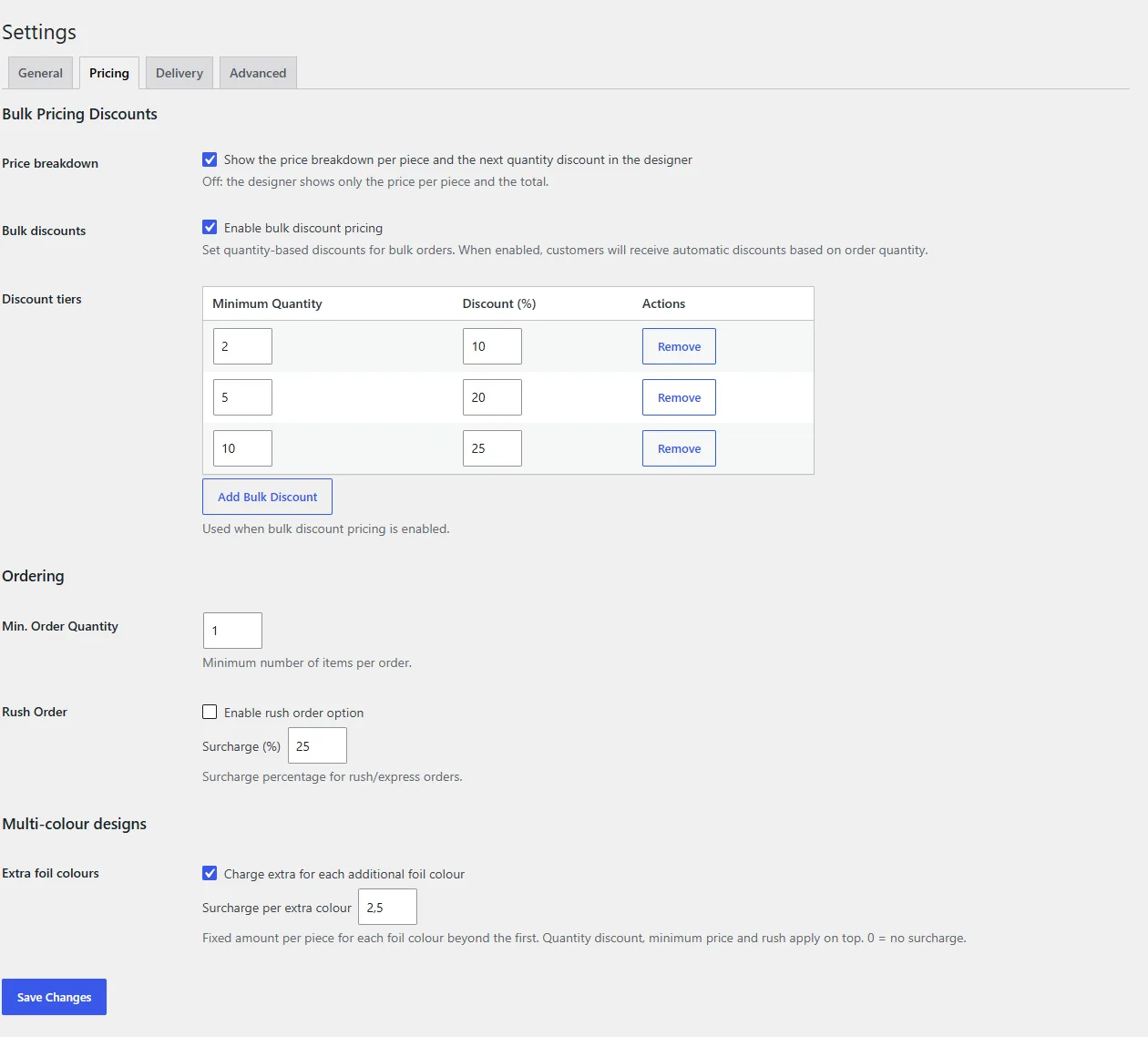
- Price breakdown: show the breakdown per piece and the next quantity discount in the designer. Off: only the price per piece and the total.
- Bulk discounts: enable quantity-based discount tiers (minimum quantity and a discount percentage per tier).
- Min. order quantity: the minimum number of items per order.
- Rush order: an optional rush option with a surcharge percentage. Off by default.
- Multi-colour designs: charge a fixed amount per piece for each foil colour beyond the first (0 = no surcharge). The quantity discount applies to it and so does rush; the minimum price does not absorb it.
The formula and worked examples are in the pricing guide.
Delivery tab
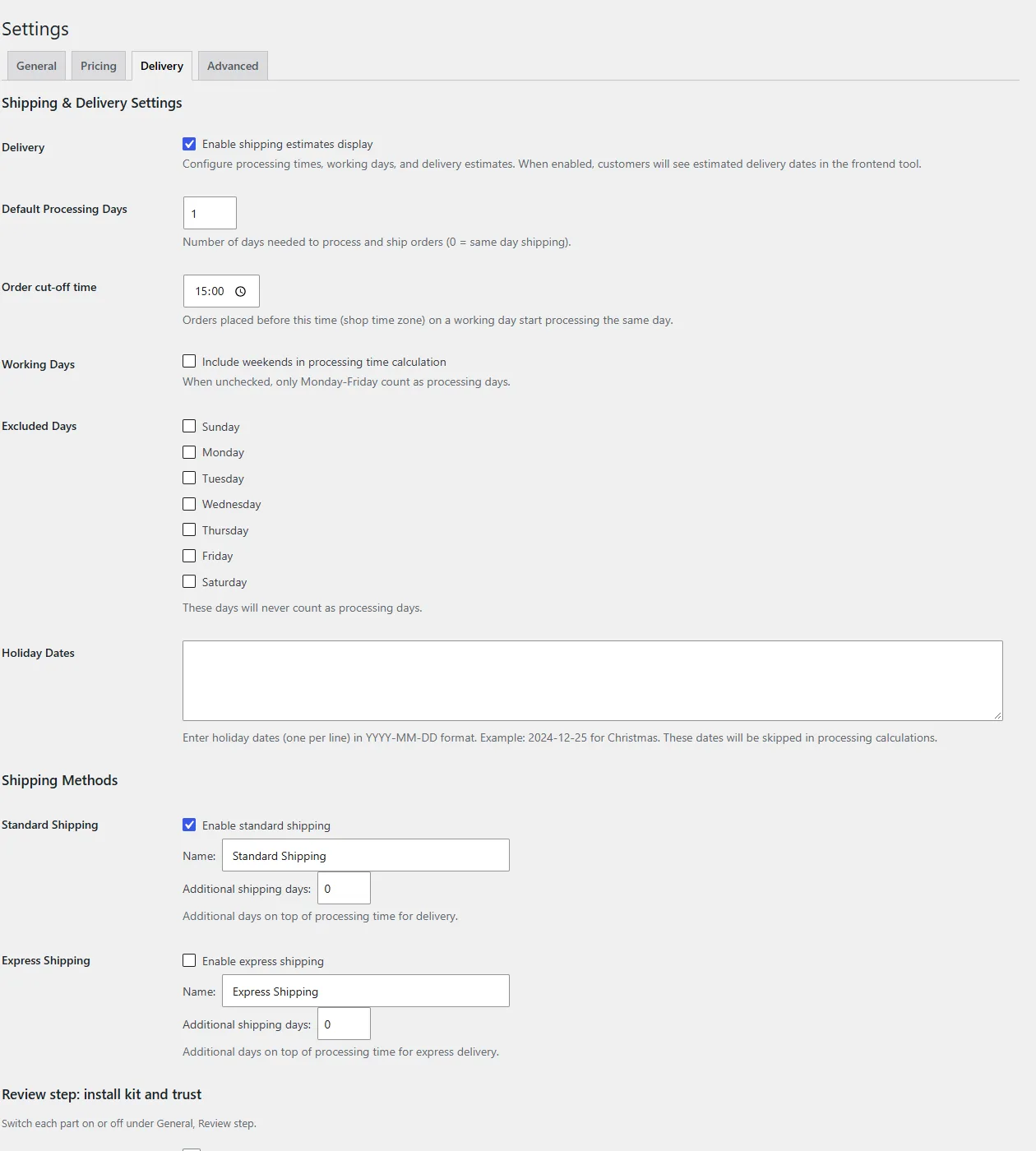
- Shipping estimates: show an estimated shipping day in the designer.
- Default processing days (0 = same day), order cut-off time (shop time zone), whether weekends count, excluded weekdays and holiday dates (one per line, YYYY-MM-DD).
- Shipping methods: a name and additional shipping days per method.
- Review step: install kit and trust: up to 4 regular WooCommerce products as install kit (price, tax and stock come from WooCommerce; they are added to the cart as separate items), an installation guide URL, an installation video URL and up to 6 photos of installed work per start preset.
Advanced tab
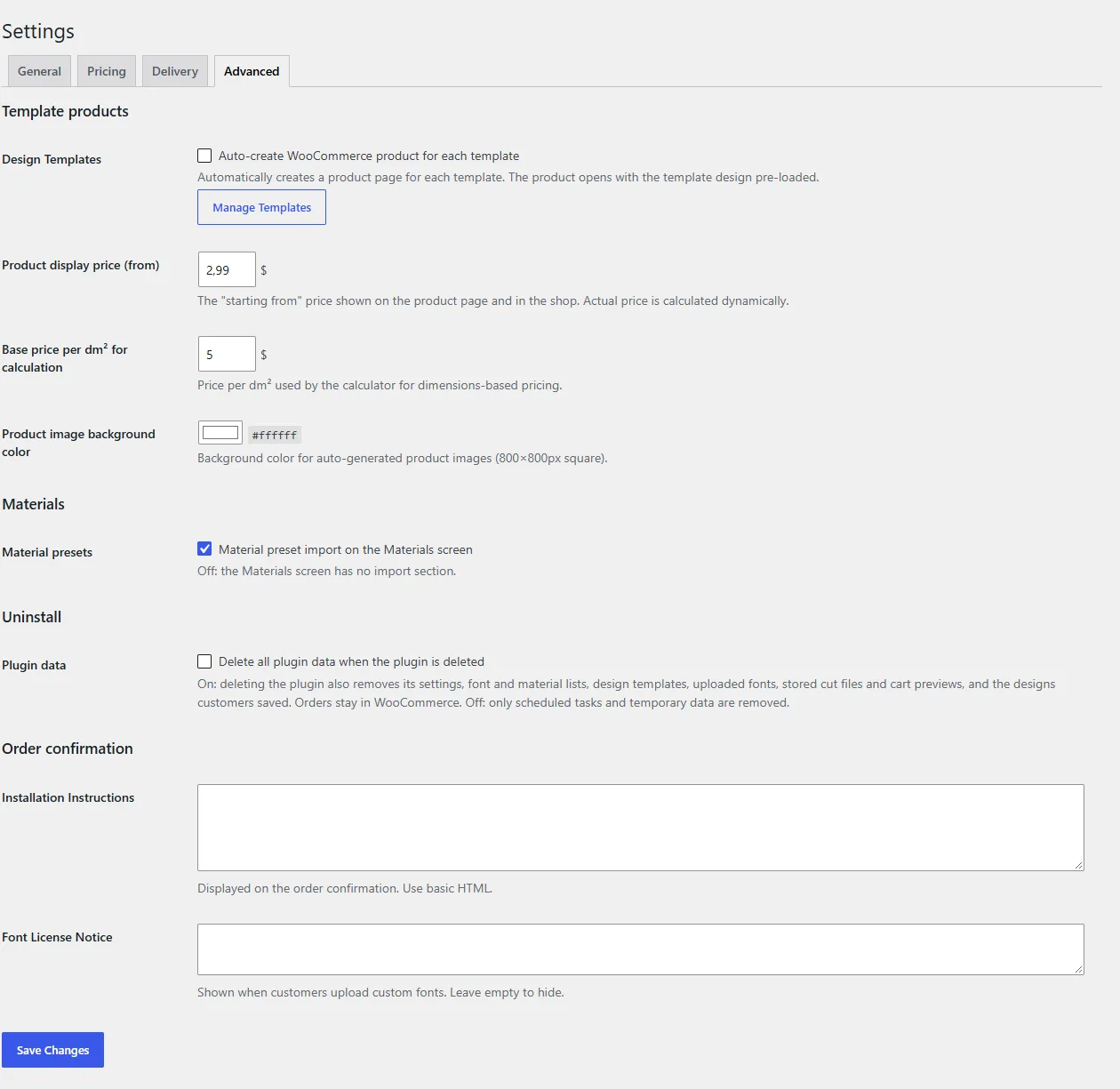
- Template products: automatically create a WooCommerce product for each template, the “from” display price, the base price per dm² used by the calculator and the background colour of generated product images (800 × 800 px).
- Material presets: show or hide the import section on the Materials screen.
- Delete all plugin data when the plugin is deleted (off by default). On: deleting the plugin also removes its settings, font and material lists, templates, uploaded fonts, stored cut files, cart previews and the designs customers saved. Orders stay in WooCommerce. Off: only scheduled tasks and temporary data are removed.
- Order confirmation: installation instructions (basic HTML) shown on the order confirmation, and a font licence notice shown when customers upload fonts (empty hides it).
Materials screen
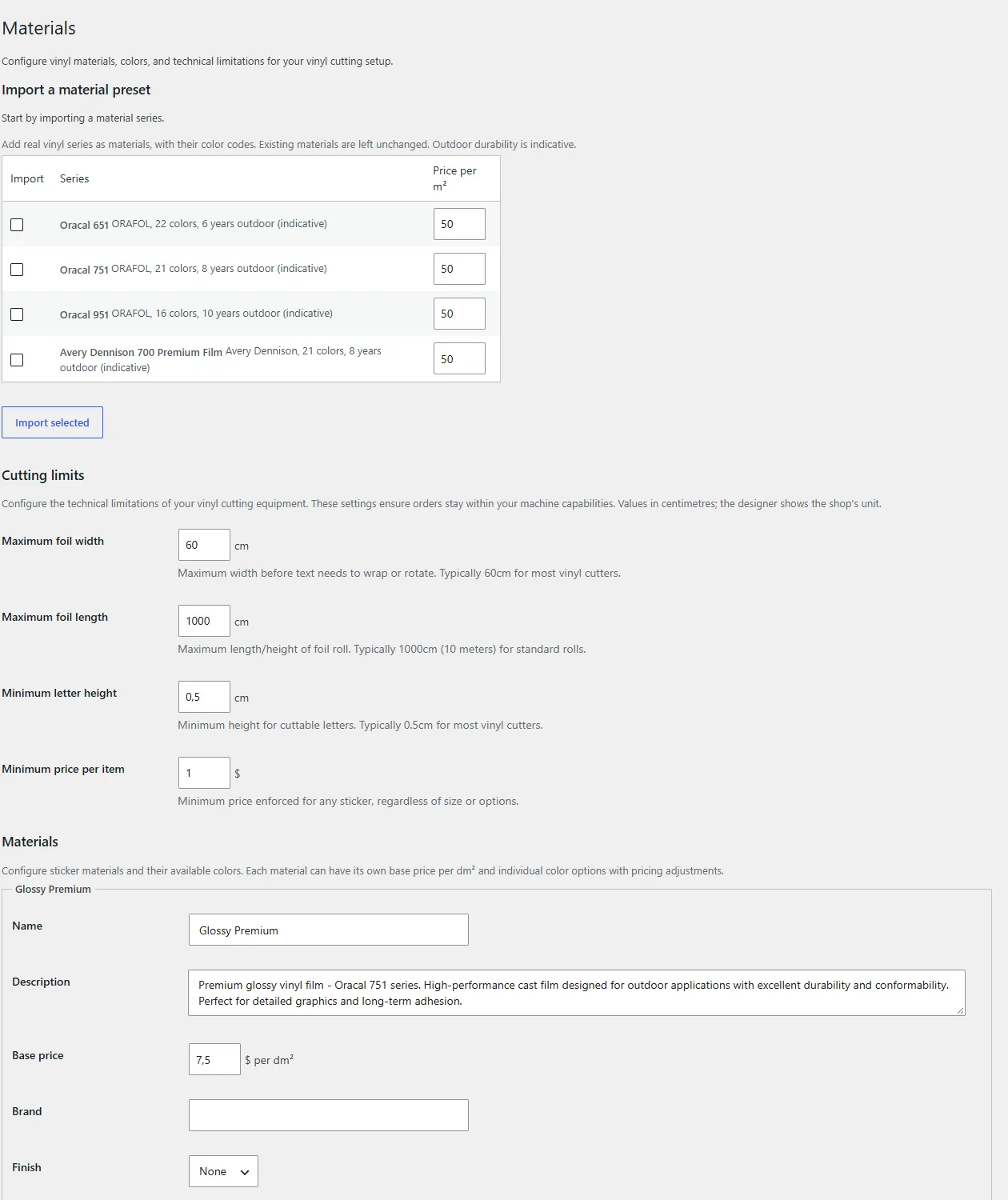
Import material presets (Oracal 651, 751, 951 and Avery Dennison 700 Premium Film, each with its colour codes and an indicative outdoor durability), set the cutting limits (maximum foil width and length, minimum letter height, minimum price per item) and edit your materials. Each material has a name, description, base price per dm², brand, finish (None, Gloss, Matt, Metallic), indicative outdoor years, minimum letter height, minimum stroke in mm, roll width, the surfaces it is suitable for (Glass, Vehicle, Wall, Boat, Indoor) and its colours with a code, name, surcharge per dm² and a fixed price increase. Every material needs at least one colour. You can also set a default material and colour, and switch on printed stickers with a base price per dm² and optional gloss and matte laminate prices.
Fonts screen
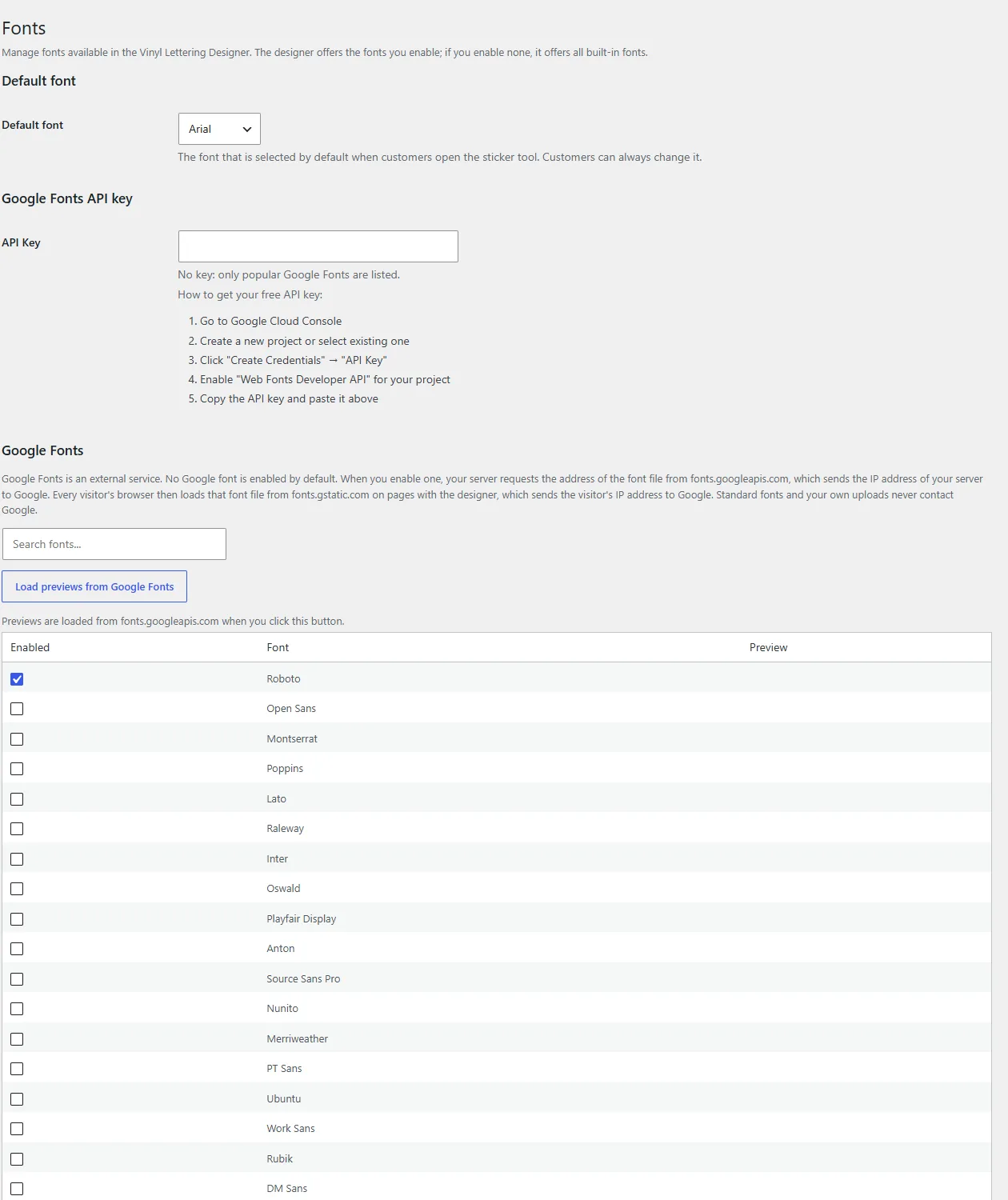
Choose the default font and which fonts the designer offers: standard fonts, Google Fonts (none enabled by default) and custom fonts. See the fonts guide.
Designer style
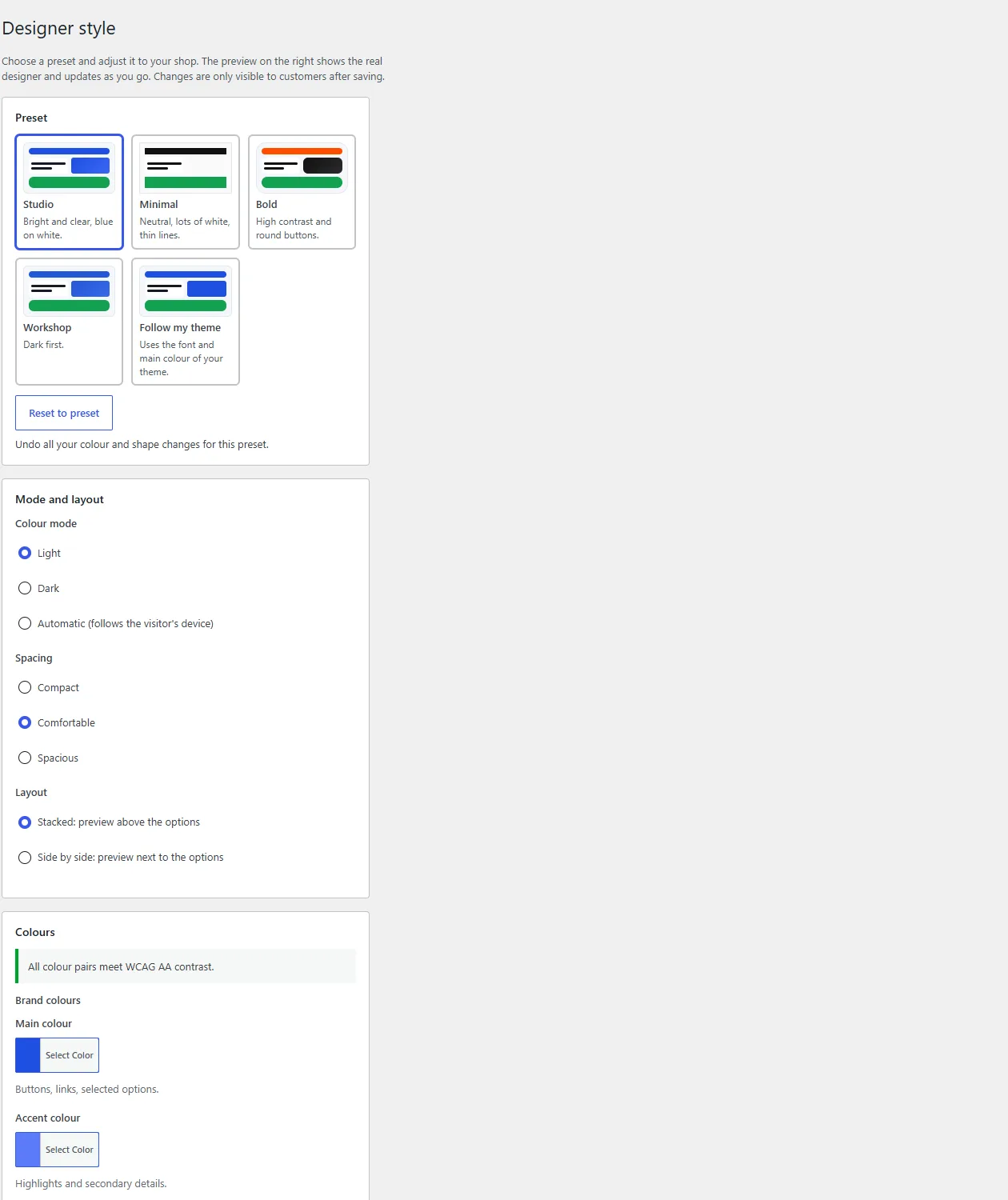
Pick a style preset and adjust it with a live preview of the real designer: colour mode (light, dark, automatic), spacing (compact, comfortable, spacious), layout (stacked or side by side), shapes, colours, dimension lines and custom CSS (start selectors with .vst-tool). You can export a style as a file and import one from another shop; an import is checked first and only published when you save. Changes are visible to customers after saving.
Templates
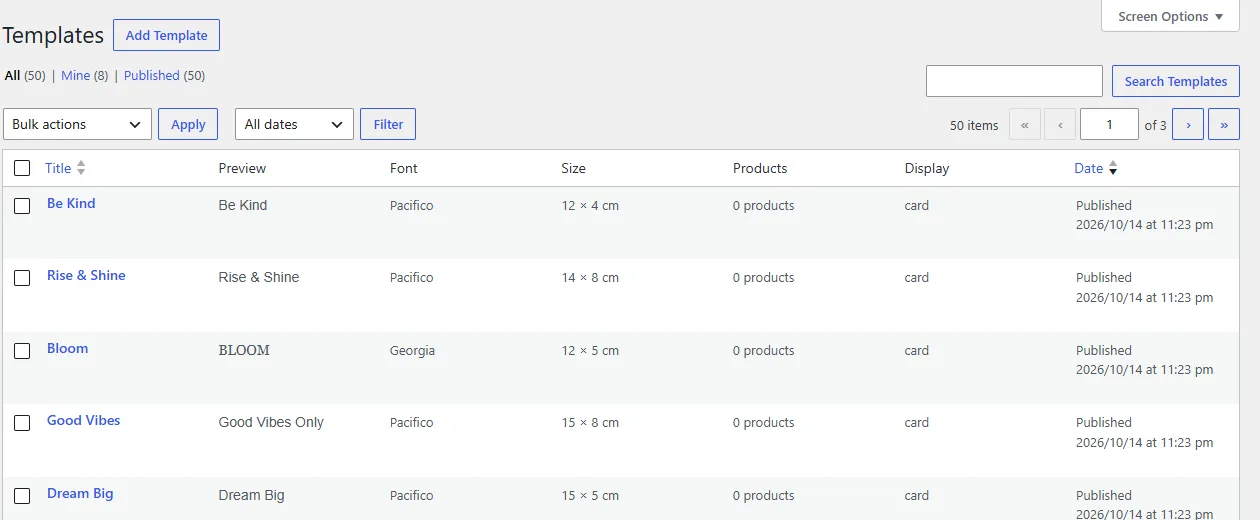
Design templates that customers can start from; select templates and choose Generate products under Bulk actions to make shop products from them. See templates and start presets.
Extensions
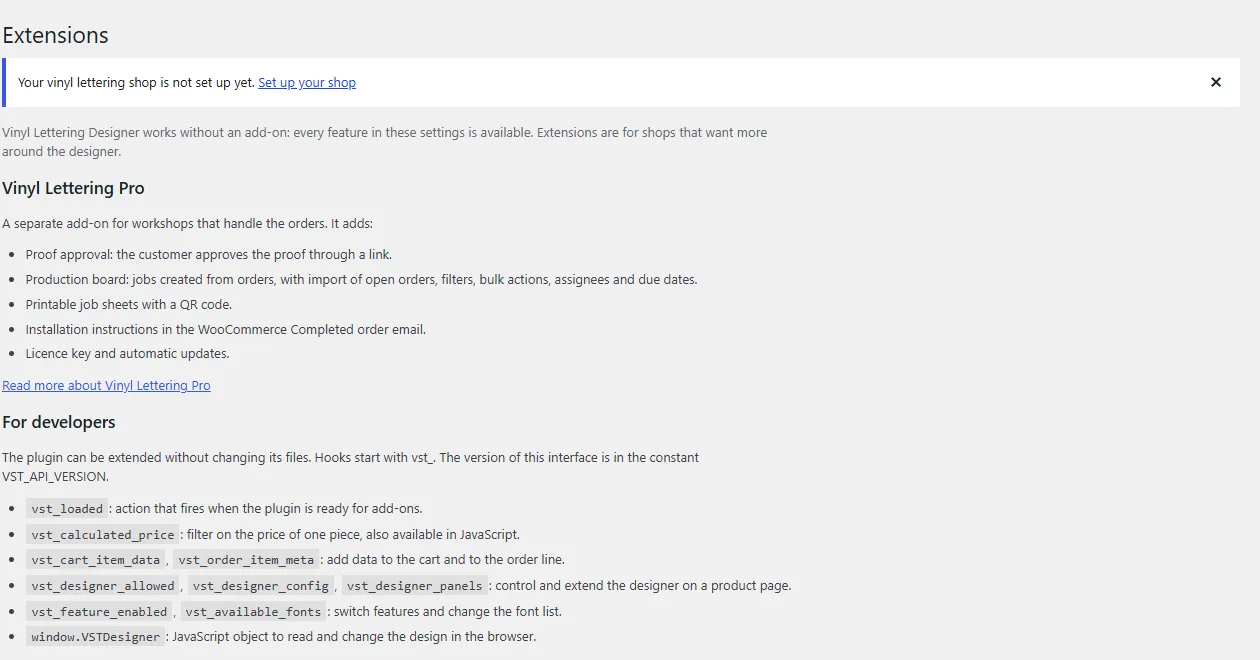
The Extensions page in the Vinyl Lettering menu points to add-ons for proofs and production planning, such as Pro. It comes with one notice that you can dismiss, and it shows only on the plugin's own screens.
Defaults at a glance
Switched off on a new install: italic and underline, letter spacing, line spacing, disproportional scaling, the background panel option, customer font upload, backend font upload, the onboarding tour, the transfer tape line, rush pricing and printed stickers. Everything else listed above is on. The features page shows what each switch gives your customers.