Production files guide
What the workshop receives with an order, which file to open for which job and why it can be cut without touching the design.
Where to find the files
The design travels with the order line. Open the order in the WooCommerce admin: every item with a design shows its text, size, material and quantity, and the download buttons for its production files (also in the “Vinyl Sticker Files” box on the order). Only users who may manage WooCommerce can download them.
Which files you get
| Button on the order | For | What it is |
|---|---|---|
| Cutting file (SVG) | Cut vinyl | The design as outlines in real millimetres at the ordered size. Overlapping letters are welded into one outline, so the file has no font dependency. |
| Layer 1: colour + weed box + registration marks (SVG) | Multi-colour cut vinyl | One file per foil colour, each with the same weed box and registration marks. Without registration marks the button reads “Layer N: colour + weed box”. |
| Print file (PDF) | Printed stickers | The print file for a printed sticker. |
| Print file (SVG, contains photo) | Designs with a photo | The SVG with the image in it is the print file. |
One SVG per foil colour
A design with more than one foil colour gives one SVG per colour, so each colour can be cut from its own roll. Every layer file carries registration marks (three small crosses in the same corners on each layer) so the layers can be placed exactly on top of each other. Read more in multi-colour and registration marks.
The PDF with a CutContour line
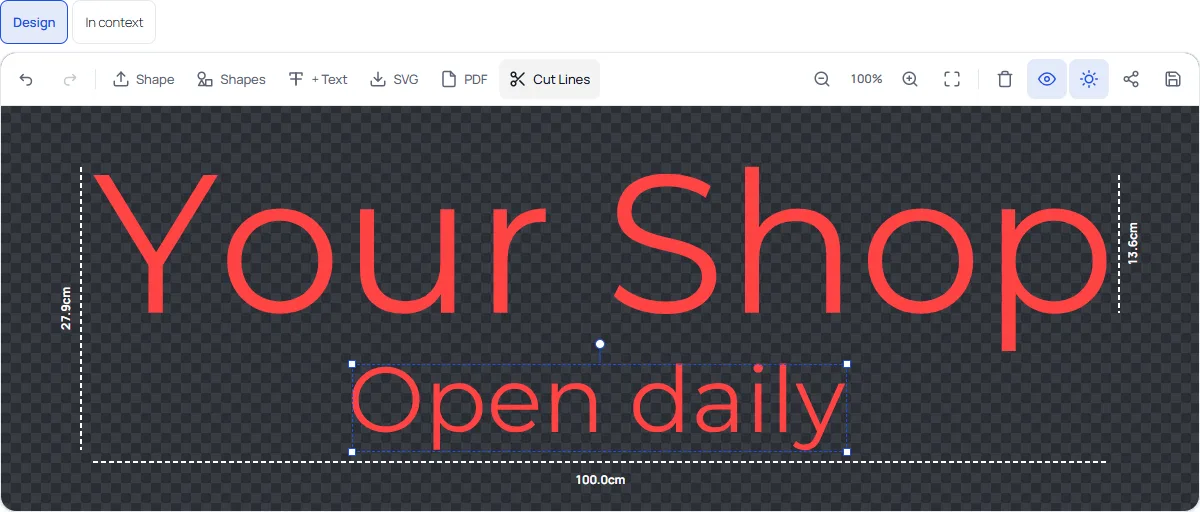
When the PDF download switch is on, the customer can also download a PDF of the design at actual size, with the cut line as the CutContour spot colour. That is the name that many print shops and their RIP software look for to drive a cutting table: the line is recognised as a cut path and is not printed. The same PDF button is available on the designer toolbar.
Printed stickers
With printed stickers switched on, the order has a print file as a PDF, with the background colour or image the customer chose. Cut vinyl layers do not apply to printed stickers.
Design file missing
If an order was placed before the plugin stored design files, the order shows “Design file missing” and says not to produce from the preview: ask the customer to send the design again.
From file to machine
- Download the cutting file (or one file per colour) from the order.
- Open it in the cutting software you already use. The plugin does not talk to a cutting machine.
- Cut, weed and apply the transfer tape. For multi-colour, place the layers on the crosses and peel the crosses off.
The production check in the designer has already warned the customer about letters that are too small and lines that are too thin for the material, with a one-click fix, so fewer orders arrive that cannot be cut.
When production gets busy
The free plugin gives you the files. Pro organises what happens around them: a proof the customer approves before you cut, a production board with a status per job and a job sheet with a QR code at the machine.