Customer features
What your customers can do in the designer, so you know what to switch on and what to tell them.
Designing
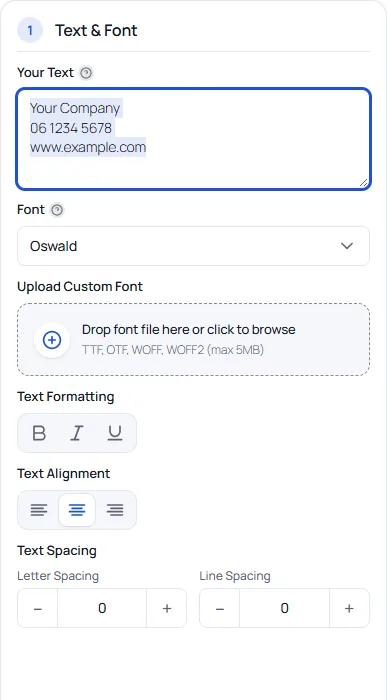
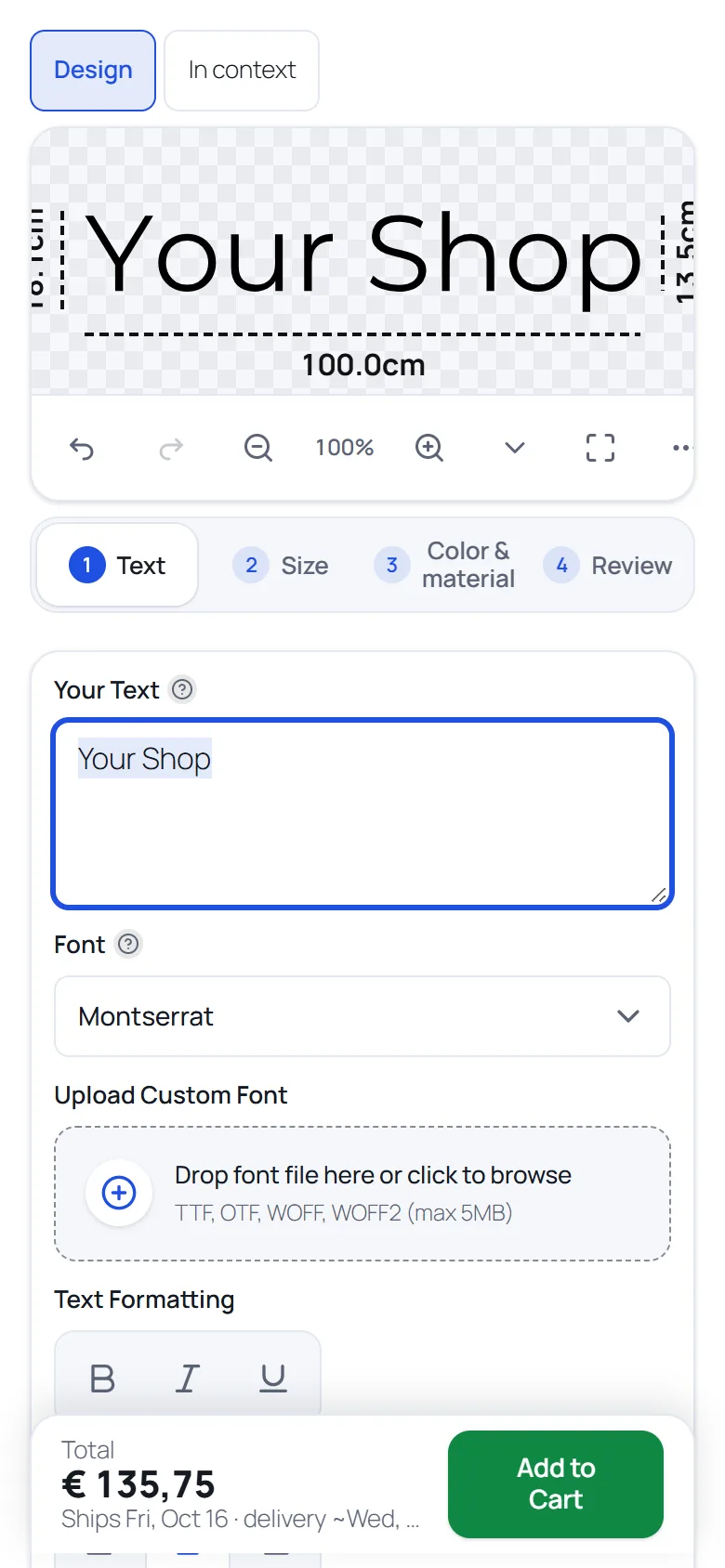
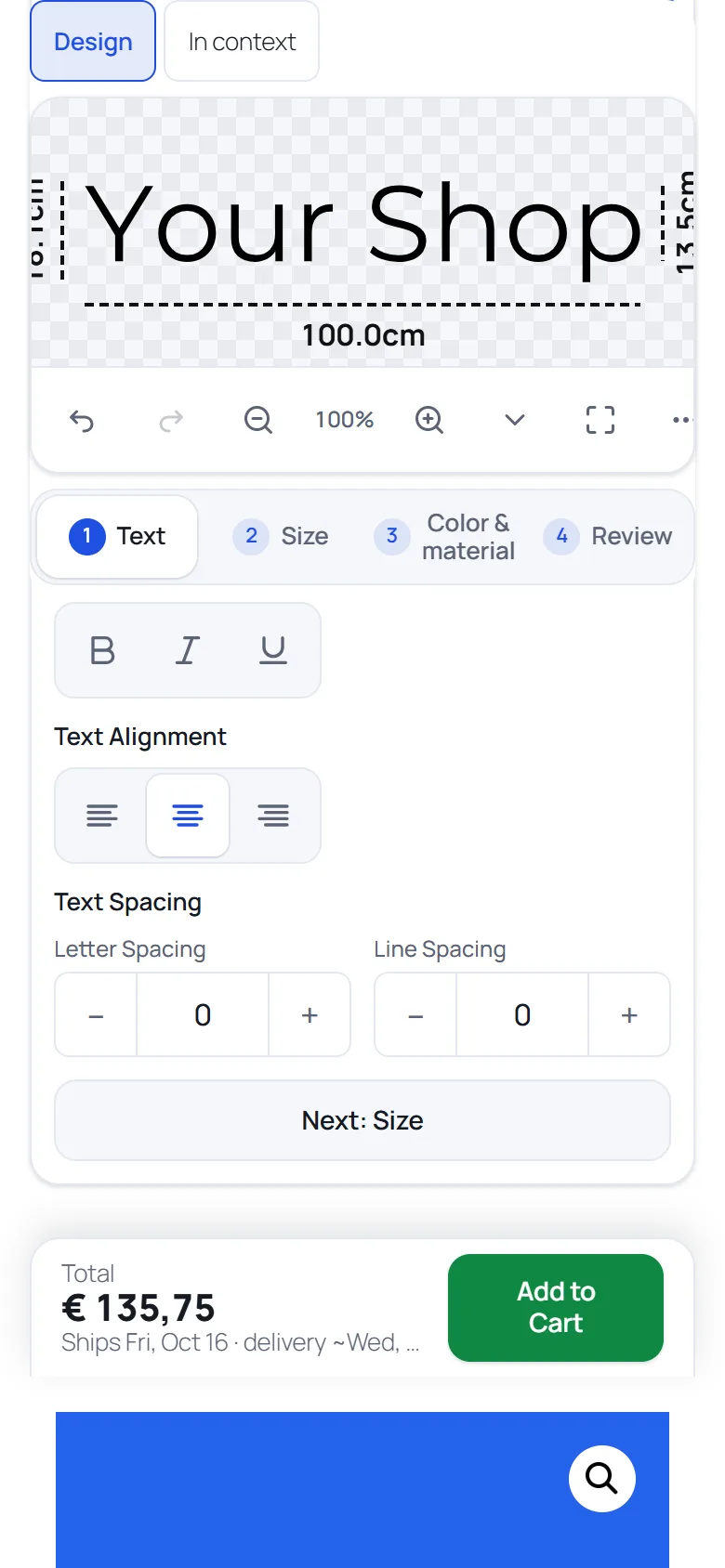
The customer types a text (several lines are fine), picks a font from a grid that previews their own text, and sets bold, italic or underline, alignment, letter spacing and line spacing, where you have switched those on. They can add more text layers and shapes, and give each layer its own foil colour. A toolbar offers undo and redo, SVG and PDF download, a cut lines view, zoom, full screen, clear, dimension lines, a dark or light canvas and a share button.
Size modes
The customer chooses how to set the size: by letter height, by total width or by fitting inside an area. With fit inside an area they enter the maximum width and height, and the design is sized to fit with the resulting cut size shown under the fields. The size is always in the real size on the canvas, with dimension lines.
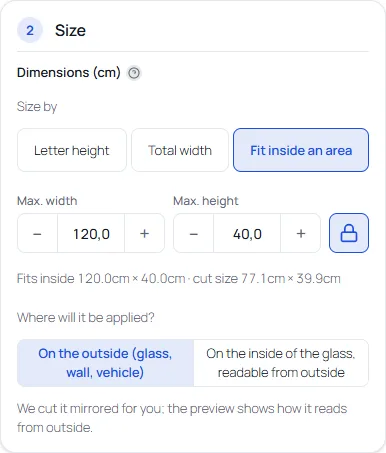
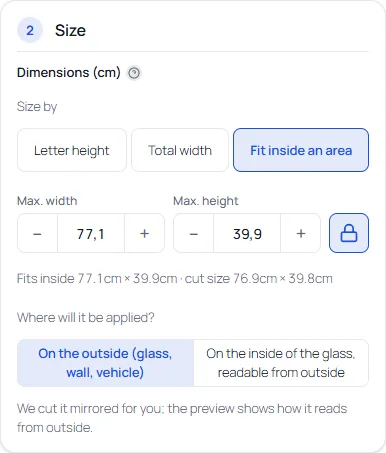
For glass, the designer asks whether the vinyl goes on the outside or the inside. For the inside, the cut file is mirrored and the preview shows how it reads from outside.
Scene preview
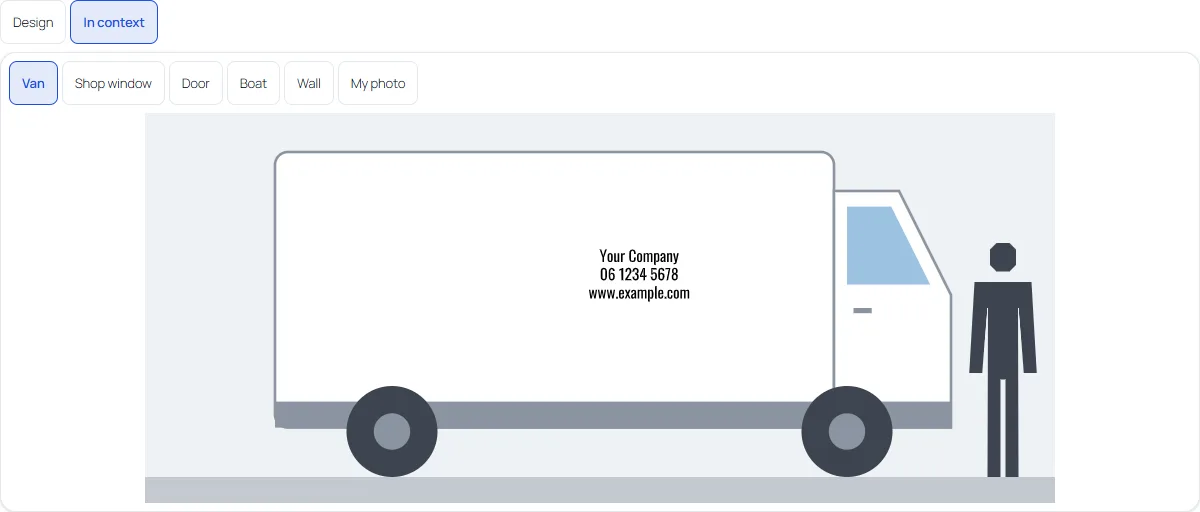
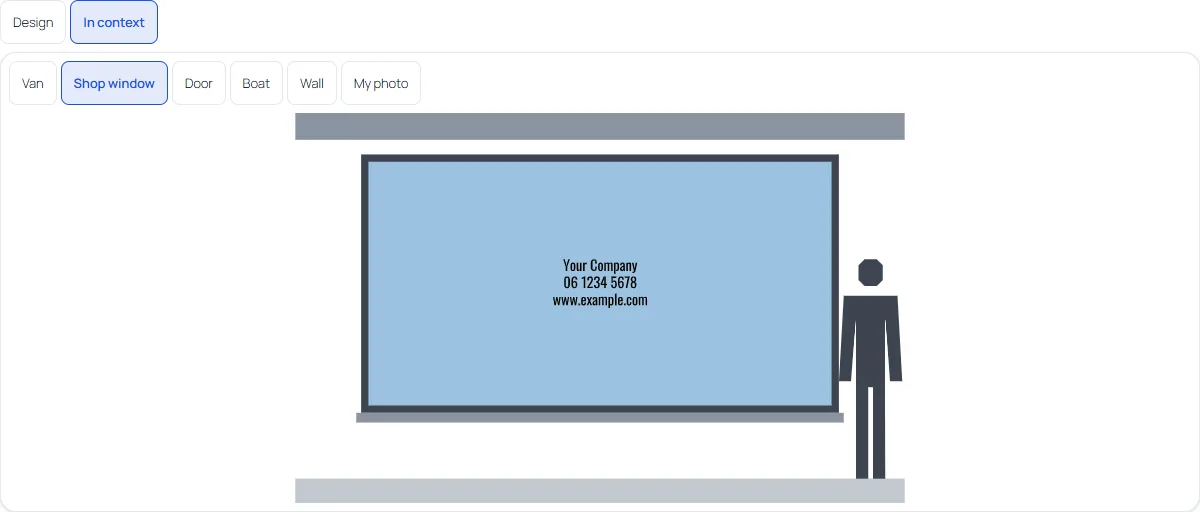
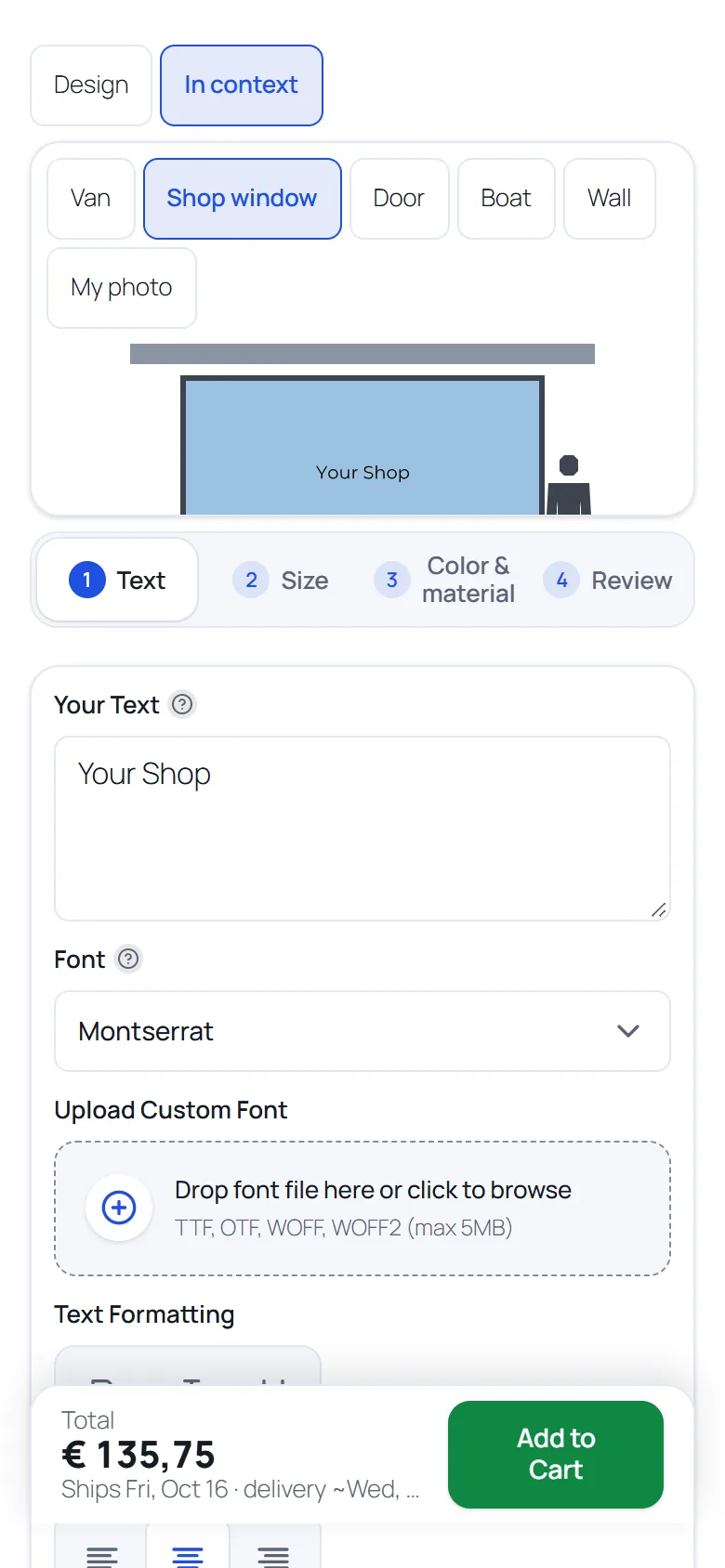
The In context view shows the design at real size in a scene: a van, shop window, door, boat or wall, or on a photo the customer adds (the photo stays in their browser).
Production check
The designer warns when letters are smaller than the material allows, when lines are too thin, when small inner shapes are a problem and when the design does not fit the roll width, and offers a one-click fix. This keeps unworkable designs out of your production queue.
Share, e-mail, save and design again
- Share link: a link to the design, valid for 30 days.
- “Email me this design”: the customer receives the link by e-mail after ticking a consent box; the address is not stored.
- Saved designs: logged-in customers can save designs in their account (up to 20).
- Design again: from an earlier order in the account, the customer re-opens the design.
Review step
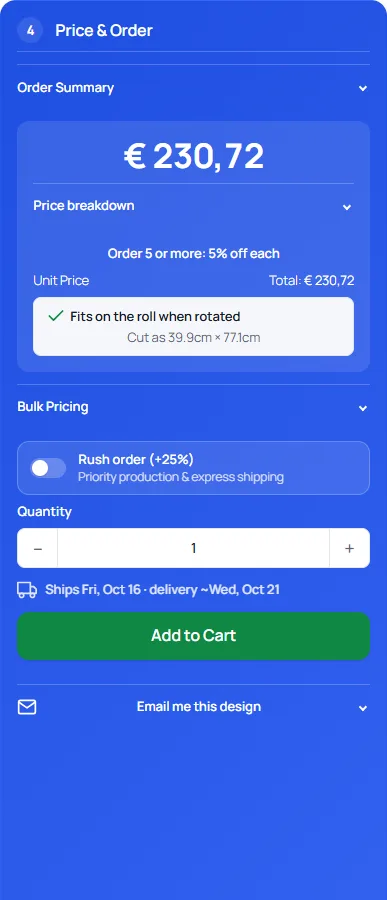
Before ordering, the customer sees a review step with the price breakdown. You can add install kit products (up to 4 regular WooCommerce products that are added as separate items), links to your installation guide and video, photos of installed work for the start preset they chose, review stars from the product's WooCommerce reviews, an indicative outdoor durability line and a shipping day estimate based on your order cut-off time.
On a phone
The designer is responsive. On phones the steps sit under the canvas, and from 7.0.2 the canvas stays visible at the top while the customer scrolls through the options. You can change this in Settings, General, under Canvas on phones: stays visible at the top (default), scrolls with the page, or opens the full screen editor after the customer picks a project (this needs the Full screen designer switch). The “What are you making?” row is compact on a phone too and has a Hide button.
Everything has a switch
Every customer-facing feature above can be turned on or off in Settings, so the designer offers exactly what your shop can produce.